
Installed successfully 🎉
Pin Fake Email Checker to your toolbar
One quick step, and every email address on any page gets a color-coded check — without ever leaving the tab.
-
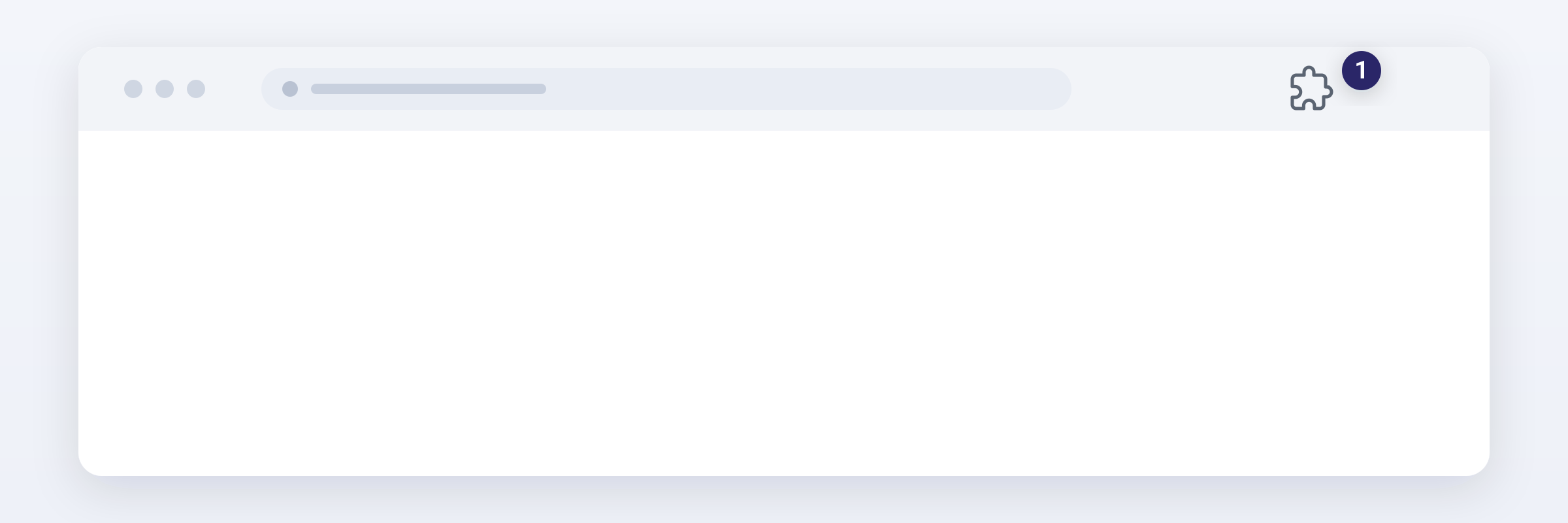
Click the puzzle piece 1 in the top-right corner of your browser to open your list of extensions.
-
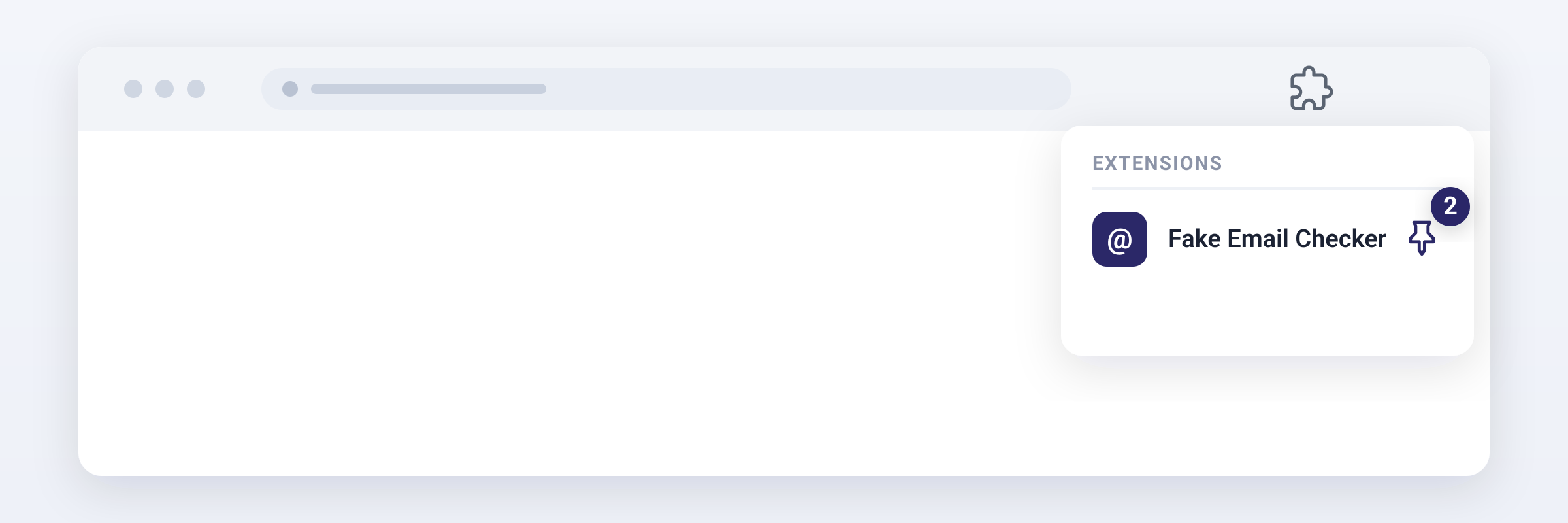
Find Fake Email Checker in the list and click the pin 2 next to it. The icon now stays on your toolbar.
-
You're done. Open any page with an email address and the checks start on their own.
See how to use Fake Email Checker →
You're all set ✨
Fake Email Checker is ready
It's already on your toolbar. Here's how to get the most out of every email address you come across.
-
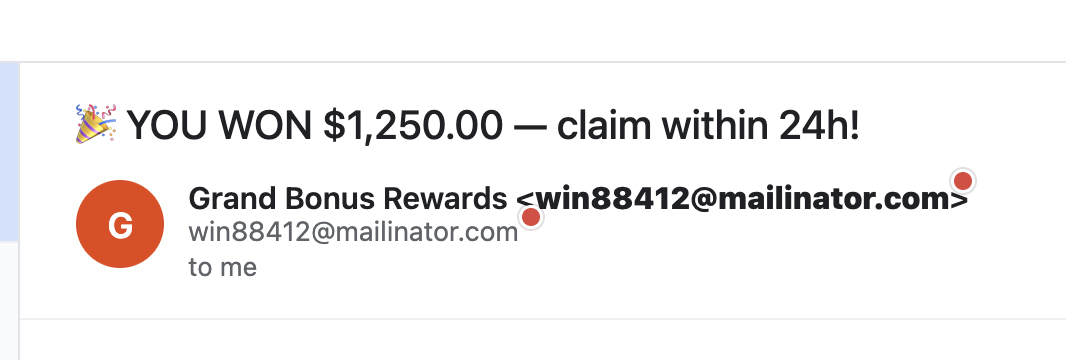
Open any page. A colored dot appears next to every address it finds: Ok Risky Invalid
-
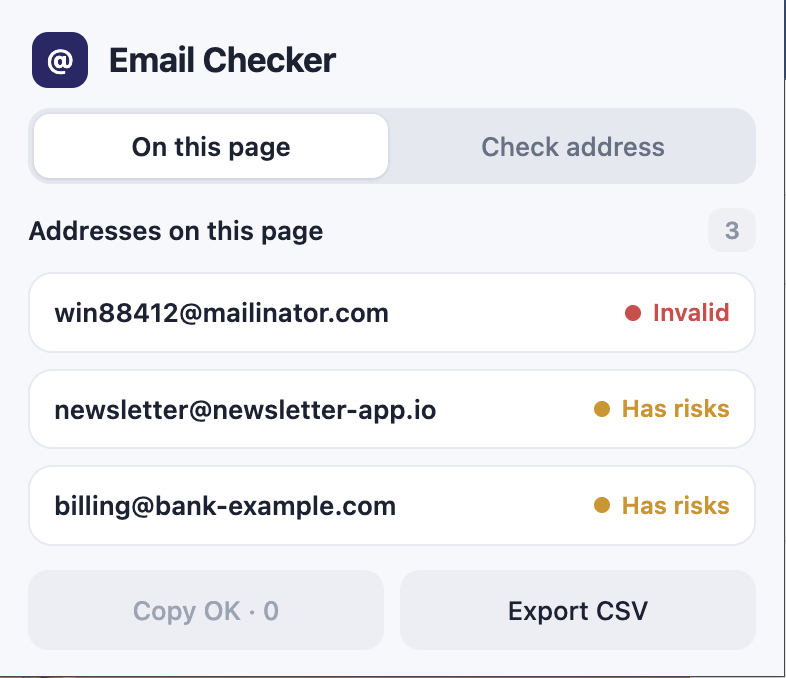
Click the toolbar icon to see every address on the page with its status, at a glance.
-
Click any address for a full report: format, MX records, domain age, SPF and DMARC, and whether it's a role or free-provider address.
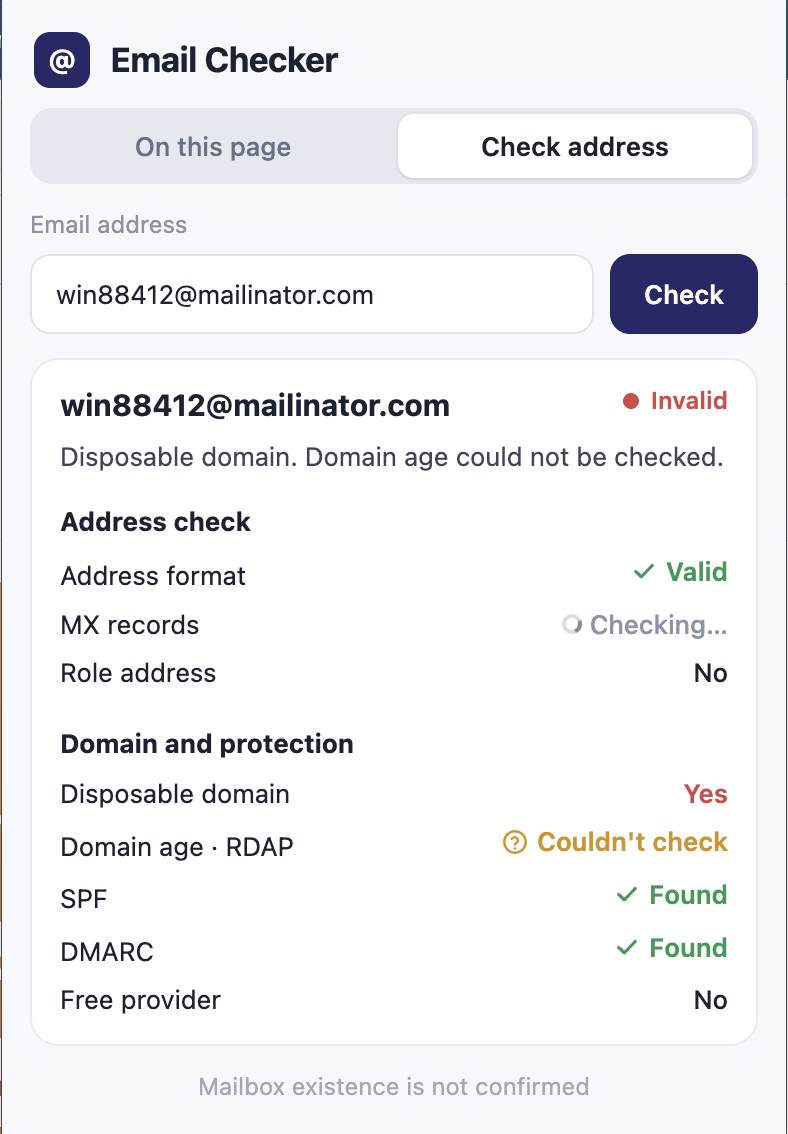
-
Copy OK copies only the addresses that passed, and Export CSV saves the whole list. That's it.
Don't see the icon on your toolbar? Pin it →